You can download free Shopify sample products CSV files below: our ready-made dummy product templates for fashion, apparel, home and garden and jewelry stores, plus Shopify’s own official product_template.csv. Open one in Google Sheets or Excel, replace the sample rows with your products, and import it from Products > Import in your Shopify admin. This guide was updated in October 2026 for Shopify’s current CSV format, which renamed several columns (for example, Handle is now URL handle).
Quick links: Download Shopify dummy products CSV templates and the spreadsheet guide in Google Sheets.
See more:
- Free Shopify shipping policy templates (Google Docs)
- Best Shopify Blog Templates (Free + Paid)
- What is an eCommerce Product Configurator? Benefits, types and examples
Key takeaways
- Free downloads: 4 niche templates (fashion, apparel, home and garden, jewelry) plus a Google Sheets guide, and Shopify’s official sample CSV.
- Only Title is required for new products; URL handle is also required when a product has variants.
- Shopify renamed columns: the current template uses URL handle, Description, Price and Product image URL, but Shopify still accepts the older names such as Handle, Body (HTML), Variant Price and Image Src.
- Limits: save as UTF-8, keep the file under 15 MB, and split bigger catalogs into several files.
- Test first: import 3 to 5 products, check them, then import the rest.
What is Shopify sample products csv template?
A Shopify sample products CSV (also called a Shopify product import CSV template, dummy products CSV or test products CSV) is a spreadsheet file that shows you exactly how to format product data for a bulk import into your store. Each row is a product or a variant, and each column is a product attribute such as title, price or image URL. You can open the CSV file in any spreadsheet editor like Google Sheets, Excel or Numbers.
The benefits of using a Shopify product upload template:
- Time-saving: Add hundreds of products in one import instead of one by one.
- Bulk import and export: Move product details in large volumes, for example from another platform.
- Error prevention: The structure shows which data goes in which column.
- Data formatting guidance: Example rows demonstrate how values should look, such as TRUE or FALSE and Active or Draft.
- Product variant management: Option columns handle sizes, colors and materials.
- Image uploads: Add image URLs directly in the CSV file.
- Test data for new stores: Dummy products let you preview a theme, an app or a checkout flow before your real catalog is ready.
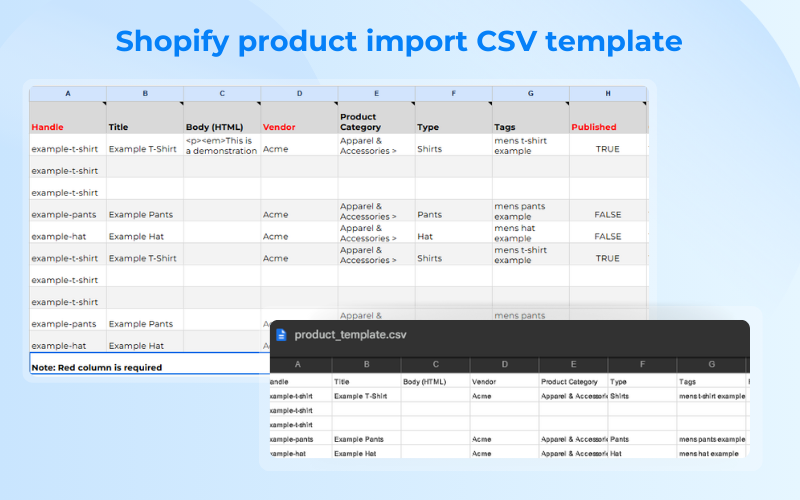
Shopify CSV Format
The Shopify CSV format is a UTF-8 encoded, comma-separated file where each row represents a product or a variant and each column is a product attribute. Shopify’s current sample file uses newer column names than older exports. The table below lists the key columns in Shopify’s current template, the older name you may still see in old files (including our niche templates), and whether the column is required.
| Column (current name) | Older name | Required? | Example value |
|---|---|---|---|
| Title | Title | Yes, for new products | Blue T-Shirt |
| URL handle | Handle | Yes, for variants and updates | blue-t-shirt |
| Description | Body (HTML) | No | Soft cotton t-shirt. |
| Vendor | Vendor | No | Acme Clothing |
| Product category | Product Category | No | Apparel & Accessories > Clothing > Clothing Tops > T-Shirts |
| Type | Type | No | T-Shirts |
| Tags | Tags | No | casual, cotton, blue |
| Published on online store | Published | No | TRUE |
| Status | Status | No | Active (or Draft, Archived) |
| SKU | Variant SKU | No | BT-M-BLUE |
| Barcode | Variant Barcode | No | 123456789012 |
| Option1 name / Option1 value | Option1 Name / Option1 Value | Yes, if the product has variants | Size / Medium |
| Price | Variant Price | No | 29.99 |
| Compare-at price | Variant Compare At Price | No | 39.99 |
| Cost per item | Cost per item | No | 11.00 |
| Charge tax | Variant Taxable | No | TRUE |
| Inventory tracker | Variant Inventory Tracker | No | shopify |
| Inventory quantity | Variant Inventory Qty | No | 50 |
| Continue selling when out of stock | Variant Inventory Policy | No | DENY (or CONTINUE) |
| Weight value (grams) | Variant Grams | No | 200 |
| Requires shipping | Variant Requires Shipping | No | TRUE |
| Fulfillment service | Variant Fulfillment Service | No | manual |
| Product image URL | Image Src | No | https://example.com/image.jpg |
| Image position | Image Position | No | 1 |
| Image alt text | Image Alt Text | No | Blue T-Shirt Front |
| Variant image URL | Variant Image | No | https://example.com/blue.jpg |
| Gift card | Gift Card | No | FALSE |
| SEO title | SEO Title | No | Blue T-Shirt – Acme Clothing |
| SEO description | SEO Description | No | Shop our soft blue t-shirt. |
Shopify’s template also includes Option2 and Option3 columns, unit price columns, a Tax code column, and Google Shopping columns such as gender, age group and condition. You can leave any of those blank if you do not use them.
How to use the Shopify product upload template?
To import products to Shopify using a CSV file, here are the general steps:
1. Get a Shopify sample CSV file: Download Shopify’s demo product CSV from the Import dialog in your admin (or directly as product_template.csv), or use our Shopify product CSV template. The template shows how the product data should be formatted.
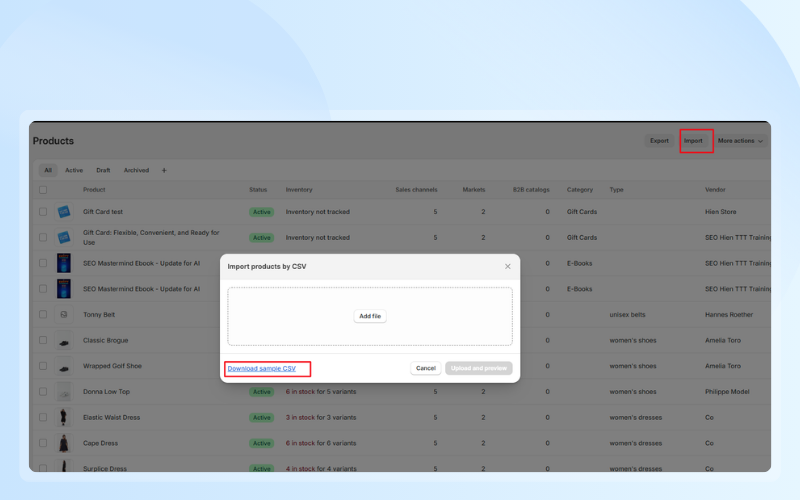
2. Work with the CSV file: Open the Shopify sample data CSV in a spreadsheet editor such as Google Sheets or Excel. Keep the header row exactly as it is. Do not rename or delete headers, because Shopify rejects files with missing headers. You can use SimiCart’s spreadsheet guide to understand the formatting rules.
3. Add product information to the CSV file:
- If a product has no variants, enter all the details for that product in a single row.
- For products with variants, enter the main product details in the first row, including the URL for the first image. In the following rows, repeat the URL handle, but leave the Title, Description, Vendor and Tags columns empty. Fill in the details specific to that variant, like size, color, price and the variant image URL.
4. Prepare images:
- Image URLs must be public and start with https://.
- If the image files are on your computer, upload them to Shopify first: go to Content > Files in your Shopify admin and click Upload files to get a URL for each image.
- Copy and paste the image URLs into the Shopify dummy products CSV file.
5. Import the CSV file:
- Save the file as CSV in UTF-8.
- In the Shopify admin, click Products, then click Import.
- Select the CSV file.
- If you are updating products, choose the option to overwrite products with matching handles.
- Preview the import and review it carefully. If there are errors, fix them in the CSV file and upload it again.
- Click Import products.
6. Check the products:
- Go to the Products page and check the imported items.
- Make sure the images are there, the variants are set up correctly and all the details look good.
- Edit any details if needed.

(How to Add Products using a CSV file, Shopify Help Center)
Shopify sample products CSV download for free
Download our free Shopify product import CSV templates, tailored for niches like fashion, apparel, home and garden and jewelry. Whether you are launching a new collection, testing a theme or migrating products, these ready-to-use dummy product files save you time. They use the classic Shopify header names (Handle, Body (HTML), Variant Price, Image Src), which Shopify still imports; if you prefer the newest headers, start from Shopify’s official product_template.csv instead.
Templates include:
- Fashion product import CSV template (fashion.csv)
- Apparel product import CSV template (apparel.csv)
- Home and Garden product import CSV template (home-and-garden.csv)
- Jewelry product import CSV template (jewelery.csv)
- Shopify product import guide in Google Sheets
How to use the dummy products for testing: import the file into a development store, check how your theme displays variants, images and prices, then delete the test products (or set their Status to Draft) before you launch.
Common Shopify CSV import errors and how to fix them
Most failed imports come from a handful of problems:
- Missing or renamed headers: If the format doesn’t match or a header is missing, the import fails. Copy the header row from the template instead of typing it.
- Wrong encoding: Save as “CSV UTF-8”. Excel’s plain CSV option can break accented characters and symbols such as the rupee or euro sign.
- File too large: Shopify’s limit is 15 MB per product CSV. Split large catalogs into several files and import them one after another.
- Duplicate or changed handles: The URL handle groups variants. If a variant row’s handle does not exactly match the first row, Shopify creates a separate product.
- Broken image URLs: Images must be publicly accessible https:// links. Links that need a login, such as private Google Drive files, will not import.
- Invalid values: Use TRUE or FALSE for true/false columns, Active, Draft or Archived for Status, and DENY or CONTINUE for selling when out of stock.
Tips for smoother Shopify product CSV import
To ensure a smoother Shopify product CSV import, consider the following:
- Accuracy is key for a successful import.
- Test with a few products first to catch errors before you import hundreds.
- Always keep a backup: export your current products before an overwrite, keep one untouched copy of the CSV, and store an extra copy of your product images.
- Keep formatting clean: Shopify cannot read the file if columns shift or quotes are unbalanced, so avoid line breaks inside cells unless the cell is quoted.
- Use exact header names, copied from the template, and do not add columns other than the optional Collection column.
When updating products with a CSV file, be aware of data dependencies:
- If a non-required column in the import CSV file is blank, then the matching value in the product list is overwritten as blank.
- If a non-required column isn’t included in the import CSV file but is included in the existing product list, then the value in the product list remains the same.
- If a non-required column is included in the import CSV file that relies on other column data not included in the file, then existing data can be deleted or removed.
After the import: put your catalog in a mobile app
Once your products are in Shopify, they can power more than your website. A mobile app built with SimiCart’s Shopify mobile app builder syncs products, prices, inventory and orders from your store automatically, so every CSV import or update shows up in your iOS and Android app too. You can build and preview the app for free and publish from $99/month.
Mastering the Shopify product import CSV template helps you manage your store’s inventory quickly and accurately. If you have questions, contact us for help with Shopify store development.
FAQ
Where can I download a Shopify dummy products CSV?
You can download free Shopify dummy products CSV files for fashion, apparel, home and garden and jewelry from our template folder linked above. Shopify also offers an official sample file, product_template.csv, from the Import dialog in your admin and from its help center.
What columns are required in a Shopify product CSV?
For new products, the only required column is Title. If you are adding variants, URL handle is also required, and when you update existing products, both URL handle and Title are required. Every other column is optional.
Can I still use old column names like Handle and Variant Price?
Yes. Shopify says it maintains backward compatibility with older column names, so files with headers such as Handle, Body (HTML), Variant Price and Image Src still import. New exports and Shopify’s current template use the newer names, such as URL handle, Description, Price and Product image URL.
What is the maximum size of a Shopify product CSV file?
A Shopify product CSV can’t exceed 15 MB. If your file is larger, or the upload times out, split it into several smaller CSV files and import them one at a time.
How do I add images to a Shopify product CSV file?
Put a public https:// image link in the Product image URL column (Image Src in older files) and set Image position to 1 for the main image. For more images, add extra rows with the same URL handle and the next image URL. If your images are on your computer, upload them to Content > Files in Shopify first to get their URLs.
Why does my Shopify CSV import fail?
The most common causes are missing or renamed headers, a file that is not saved as UTF-8, a file over 15 MB, handles that do not match between variant rows, and private image links. Fix the issue in the CSV and import it again.